Account Admin
Account Administration features are available only to users who have been granted Account Administrator privileges by a company they are associated with.
If you are associated with one account, that account is selected by default. If you are associated with multiple accounts, select the account you want to manage from the drop-down list.

If you are associated with one account, that account is selected by default. If you are associated with multiple accounts, select the account you want to manage from the drop-down list.
Software
The Software area lists licenses and software associated with the company you are viewing. The company name appears under your name at the top of the page.
Use “Invite User” to invite a user to the account. See “User Invitation” below for more information.
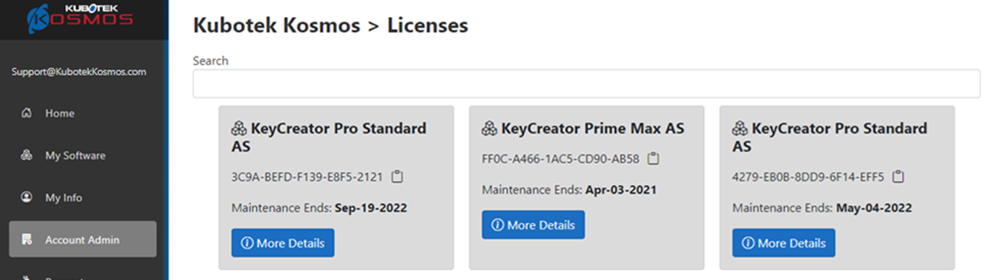
Use “Invite User” to invite a user to the account. See “User Invitation” below for more information.
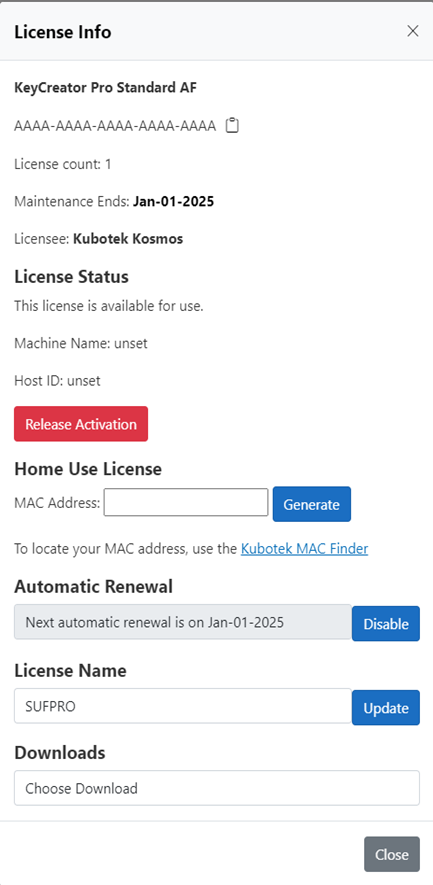
License Info
View information about your license including the product name, expiration date, and activation code for licensing.
License Status
View real-time activation and usage information for a license.
Automatic Renewals
View the automatic-renewal status of a license. See “Automatic Renewals” in “Account Settings” for more information.
License Name
Assign a friendly name to help identify a license.
Assign User
Assign a license to a specific user on the account.
Downloads
Access current software downloads.
View information about your license including the product name, expiration date, and activation code for licensing.
License Status
View real-time activation and usage information for a license.
Automatic Renewals
View the automatic-renewal status of a license. See “Automatic Renewals” in “Account Settings” for more information.
License Name
Assign a friendly name to help identify a license.
Assign User
Assign a license to a specific user on the account.
Downloads
Access current software downloads.
Users
The Users area lists users who have access to the company you are viewing. Use “Invite User” to invite a new user.

User Invitation
A user account can belong to one or more company accounts.
Multiple Accounts
Multiple company accounts support larger organizational structures and allow external service providers, such as consultants and IT professionals, to have cross-account access. Account administrators can invite users and assign the permissions they need.
Past Users
Restore former users who were removed from the company account or who left the company.
User Edit
Select the Edit pencil to update a user’s information. Select “Remove” to remove a user from the account. Use the Permissions control to manage that user’s permissions.
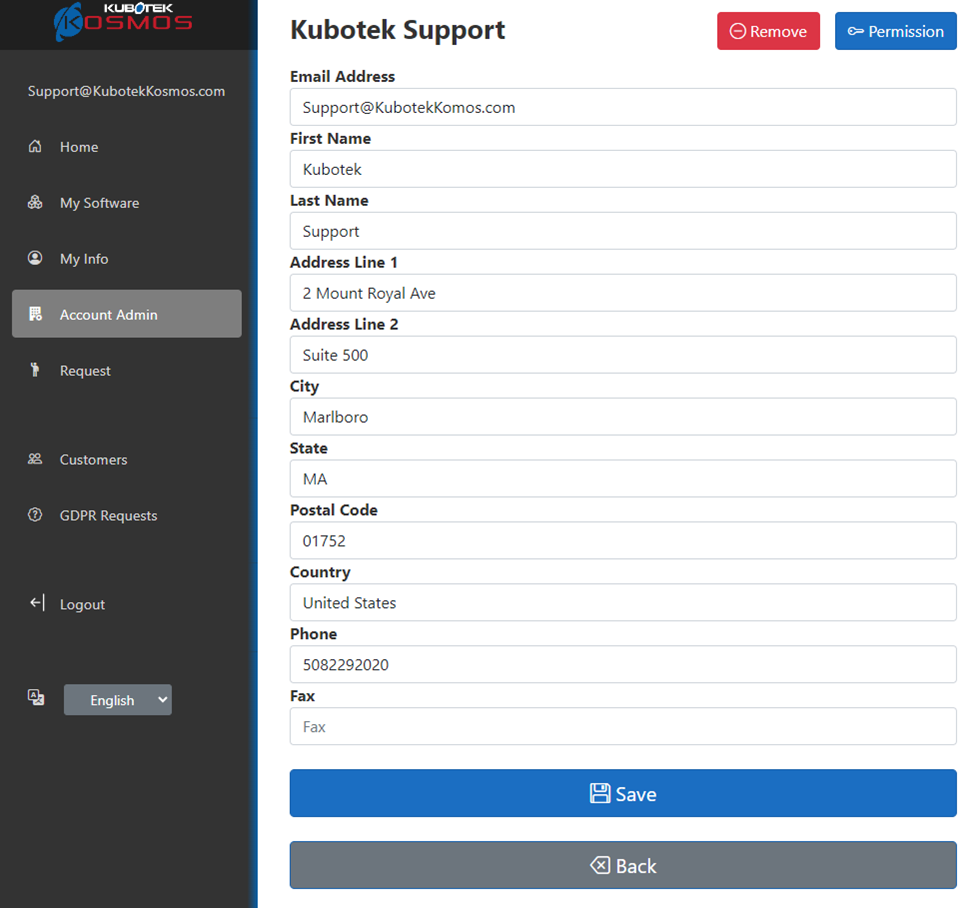
Permissions
Use the ‘Permission’ icon to access a dialog to assign user permissions for users on your account.

User Invitation
A user account can belong to one or more company accounts.
Multiple Accounts
Multiple company accounts support larger organizational structures and allow external service providers, such as consultants and IT professionals, to have cross-account access. Account administrators can invite users and assign the permissions they need.
Past Users
Restore former users who were removed from the company account or who left the company.
User Edit
Select the Edit pencil to update a user’s information. Select “Remove” to remove a user from the account. Use the Permissions control to manage that user’s permissions.
Permissions
Use the ‘Permission’ icon to access a dialog to assign user permissions for users on your account.
Note: You cannot edit your own permissions or membership from the ‘Account Admin’ area. To leave an account, use the “My Info” section.
Permission Options
Account Admin: Account Administrators have unrestricted access to place webstore orders as well as view, edit, and delete all company information, including all license and payment details.
Can Make Webstore Purchases: The user can purchase products from the Kubotek Kosmos webstore using a new or saved payment method.
If neither permission is selected, the user is associated with the company but does not have administrative or purchasing access. The user can still be assigned software with active maintenance and access other Kubotek Kosmos resources, such as the Web Forum.
Account Settings
Use this area to change the primary contact, account addresses, and saved payment methods. The default address set here is used as the default address in the webstore.

Primary Contact
Manage the primary contact information for the account. Kubotek will generally contact this person first.
Address Details
Add and save multiple addresses for use with future orders.
Payment Details
Add payment methods that can be used for new software purchases and automatic renewals.
Automatic Renewals
After saving a card, select it as the automatic-renewal payment method and select the licenses to enroll. During first-time setup, all eligible licenses are enrolled when a payment method is selected.
Only the selected payment method is used for automatic renewals. Other saved cards remain available for manual renewals and webstore purchases.
Primary Contact
Manage the primary contact information for the account. Kubotek will generally contact this person first.
Address Details
Add and save multiple addresses for use with future orders.
Payment Details
Add payment methods that can be used for new software purchases and automatic renewals.
Automatic Renewals
After saving a card, select it as the automatic-renewal payment method and select the licenses to enroll. During first-time setup, all eligible licenses are enrolled when a payment method is selected.
Only the selected payment method is used for automatic renewals. Other saved cards remain available for manual renewals and webstore purchases.
Account Documents
Kubotek Kosmos may use this section to share important information with you.
