World Axis Context
Located in the lower right viewport this axis indicator indicates the world view. World coordinates are always relative to View 1 and represent real model space.
The directions of X, Y, and Z axes are independent of the current working view. For example, if in View 8, Axonometric view, all three axes will be skewed to the screen.
World View Axis Context Menu Options

Zoom Fit
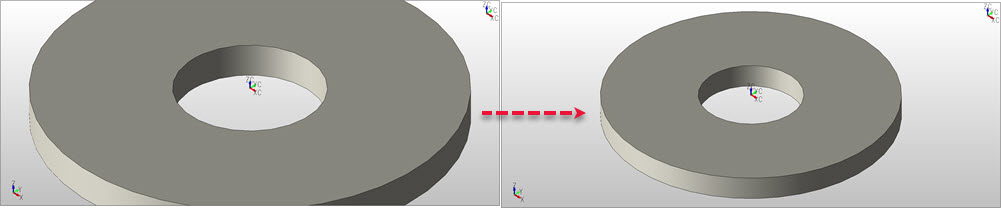
Pan Drag
Left click and drag in any direction to adjust object location in viewport, does not effect cplane or display view orientation.
Display View
Use Display View to change the current viewpoint of your model. A view is the angle at which you are looking at a part. There are eight predefined views to choose from (listed below in numerical order), but additional views can be created.
When a new view is saved, the program will assign it the next available view number in the database, beginning with the number nine (9). The program does not automatically store views. If you wish to return to a view in the future, you must save it before changing to a new view.
The Eight Pre-Defined System Views:
| View# | Description | View# | Description | View# | Description | View# | Description |
| 1 | Top | 3 | Back | 5 | Right | 7 | Isometric |
| 2 | Front | 4 | Bottom | 6 | Left | 8 | Axonometric |
CPlane
Lists functions used to define, ceate or modify CPlanes:
Z Lock
This is a toggle function that allows you to switch between Z Lock , projecting construction positions to the active CPlane or not projecting to the active CPlane, (Z Free).
Example
World/CPlane
Use this function to set CPlane or World coordinates.
CPlane:
This setting constructs the entity in Construction Plane coordinates.
World:
This setting constructs the entity in world coordinates, relative to View 1, top view. World coordinates are always relative to View 1 and represent real model space. The directions of X, Y, and Z axes are independent of the current working view. For example, if in View 8, Axonometric view, all three axes will be skewed to the screen.
When you select CPlane/World, the coordinates system are automatically assigned to world coordinates. Icon changes showing a blue border when in this mode, disable by selecting CPlane/World.
Shade
Sets the render mode for solid objects:
Normal
Smooth
Wire Frame
Hidden Lines Dashed
Hidden Lines Removed