Misc
The settings available from the Misc pane of the Set Configuration Options dialog can be used to set chaining tolerance values and cursor size, among several other options.
Dialog Options:
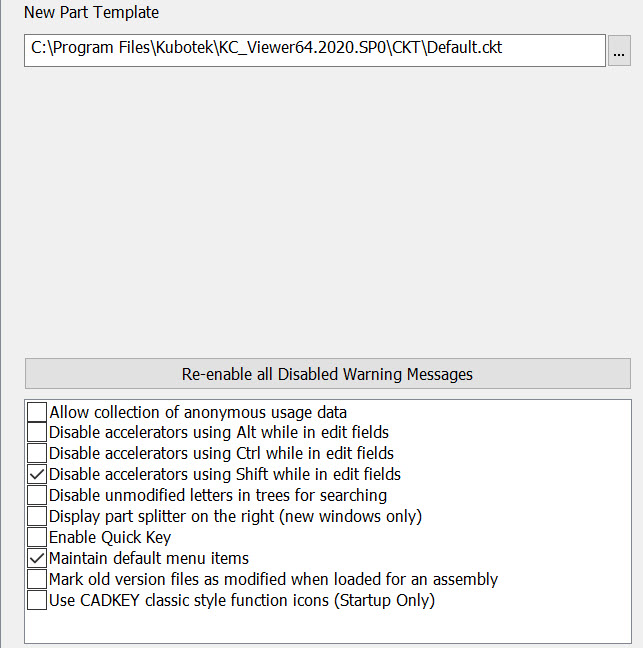
New Part Template
Allows you to select which template, if any, will load with the New Part (new .CKD). If you do not intend for a template to load, the field can be left blank.
Allow Collection of anonymous data
Enabled this feature allows collection of tasks performed during a KeyCreator session. This data can then be used to track future enhancement needs and possibly capture errors that occur during a session, which can then be addressed by development.
Disable accelerators using Alt while in edit fields
When checked, accelerators that use the ALT key will be disabled while in edit fields. This is useful if you wish to use the ALT key in an input field if it is otherwise required when executing accelerators instead.
Disable accelerators using Ctrl while in edit fields
When checked, accelerators that use the CONTROL key will be disabled while in edit fields. This is useful if you wish to use the CONTROL key in an input field if it is otherwise required when executing accelerators instead.
Disable accelerators using Shift while in edit fields
When checked, accelerators that use the SHIFT key will be disabled while in edit fields. This is useful if you wish to use the SHIFT key in an input field if it is otherwise required when executing accelerators instead. This setting is checked by default.
Disable Unmodified Letters in Trees for Searching
This option effects keyboard shortcut focus when in a tree window selection operation. When checked on the focus will be on the tree level function over any other set keyboard shortcut. An example would be if you are in a level list and left clicked on a level name called mylevel, there is also a level called slevel. Selecting s on your keyboard would cause a jump to the slevel (when this option is checked on.) If unchecked and hitting s on keyboard would bring up the Modify>Solid Face.
Display Help from the world wide web
Use this setting to get the most up to date help information using the kubotek3d.com help system. Disabled will default to the compiled html help located in KeyCreator\Lang\English\KeyCreator.chm.
Display Part Splitter on Right
The default location when opening the Part Splitter (which contains the level list, part reference tab...) is to the right of the display view, to switch sides use this option.
Enable Quick Key
This function allows for quickly changing the view, cplane, zoom, or viewport layout using the keyboard. This method requires fewer keystrokes than using the immediate commands, and doesn't change what is displayed on the conversation bar.
Maintain Default Menu Items
This check box applies to any menu (that is, displayed buttons) on the Conversation Bar that has a default button. When this check box is selected, the default button on the Conversation Bar becomes the last button used.
Mark old version files as modified when loaded for an assembly
The default behavior is to mark all files as changed which leads to a prompt for saving each loaded part reference file at closing/exiting (option is checked on). When this options is unchecked parts loaded which have part references will close/exit with a single prompt for main assembly. When file locking is enabled parts loaded as part references will load as read only (not modified.)
Use Classic Style Function Icons
When checked, the CADKEY for Windows style icons will be used. These icons are generally simpler than the default icons and use colored backgrounds to help indicate to which group they belong. After the switch is set, the software will need to be restarted before the change in icons will occur.