Kubotek Server Licensing Wizard
This phase of setting up floating licenses requires the Kubotek Server License Wizard program to be installed on the network server by a Network Aministrator. The program will be located at C:\KCNetAdmin\ServerLicenseWizard.exe by default.
Part 1: Activate Floating Licenses
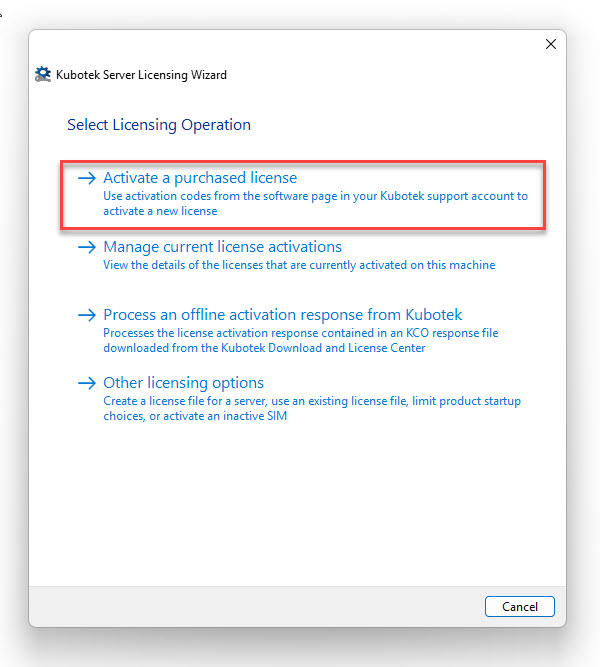
1. Run the Kubotek Server License Wizard
To retrieve a license, click on the “Activate a purchased license” button.
2. Enter the Activation Code
Note that Activation Codes can be retrieved by logging into your Kubotek Kosmos support site account. The licenses to be used in this process are specifically floating licenses. If you cannot find your code(s), please contact Customer Support.
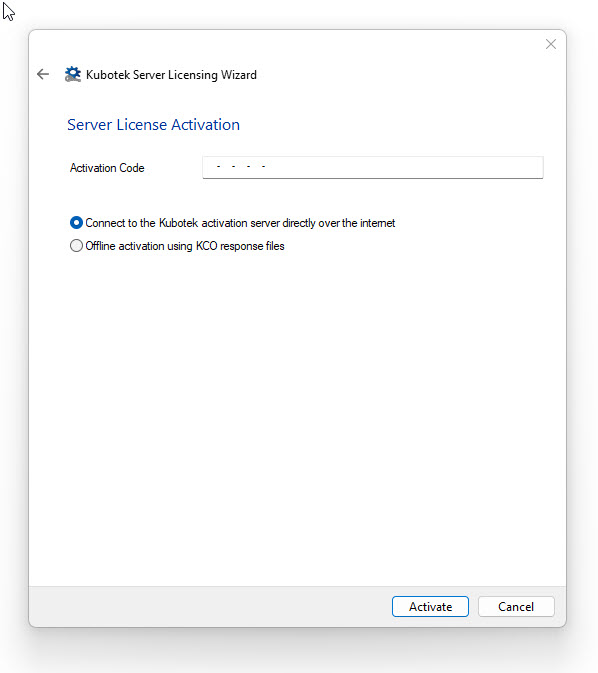
a) Enter the Activation Code (i.e. 1111-1111-1111-1111-1111)
b) Assuming this computer is online select the option “Connect to the Kubotek activation server directly over the Internet”. Note: The offline selection is covered in a separate help topic.
c) When everything is entered click “Activate” to retrieve your activation license.
3. License retrieval complete
When the license has been retrieved, you will see a “Licensing Finished” message
4. Common Errors
If you receive a “Failed to connect…” error when attempting to activate your license, the transaction to the Internet may be getting blocked by your physical connection to your network or possibly by your anti-virus or firewall. Check your wired or wireless connection. If that is ok, try temporarily turning off the anti-virus and/or firewall and try again.
If you receive “Activation yields no rights to a license” this means that you have a misspelling in your activation code.
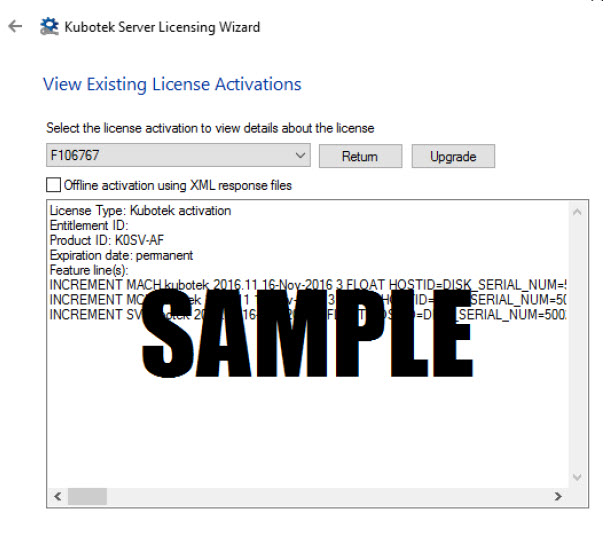
5. Viewing the retrieved license
If you wish to see the activation license, restart the Kubotek Server License Wizard and select ‘Manage current license activations’.
Part 2: Run the Kubotek floating license service
- Run the Kubotek Server License Wizard.
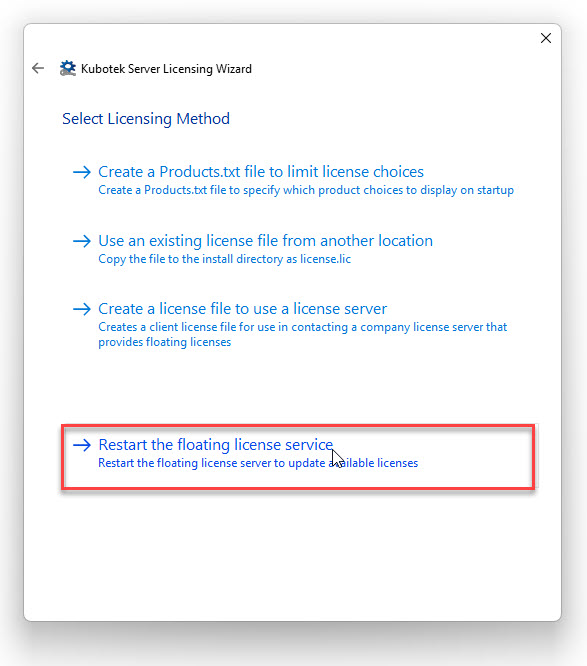
- Select “Other licensing options”.
- Select “Restart the floating license service”.