Offline Activation
Offline activation of an available standalone license is used in cases where no internet access is available or allowed on the workstation where the KeyCreator program will be run.
Steps for offline activation:
-
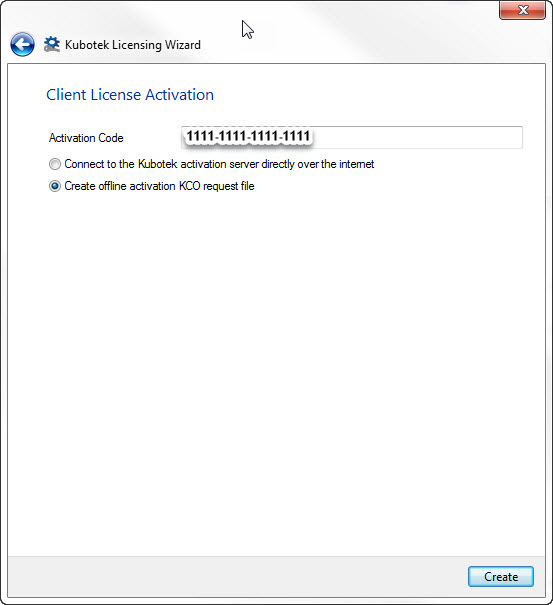
On a machine which has internet access and has the Kubotek License Wizard installed, (simply install the Kubotek product and choose the License Wizard on startup of product). Retreive and enter the Activation Code, (see step 2 above) with Create offline activation KCO request file checked.
-
In License Wizard main page choose Offline Activation and choose Create. Save the KCO file in a known location.
-
Login to the Support Site and in Account Admin or My Software page find the matching Activation code/product and choose More Details.
-
Find and select the "Offline Activation" link at the bottom of the More details page.
-
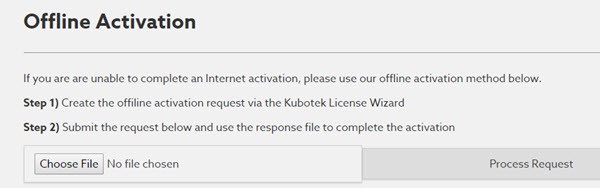
Click on Choose File and once loaded, Process Request. Download this response file.
-
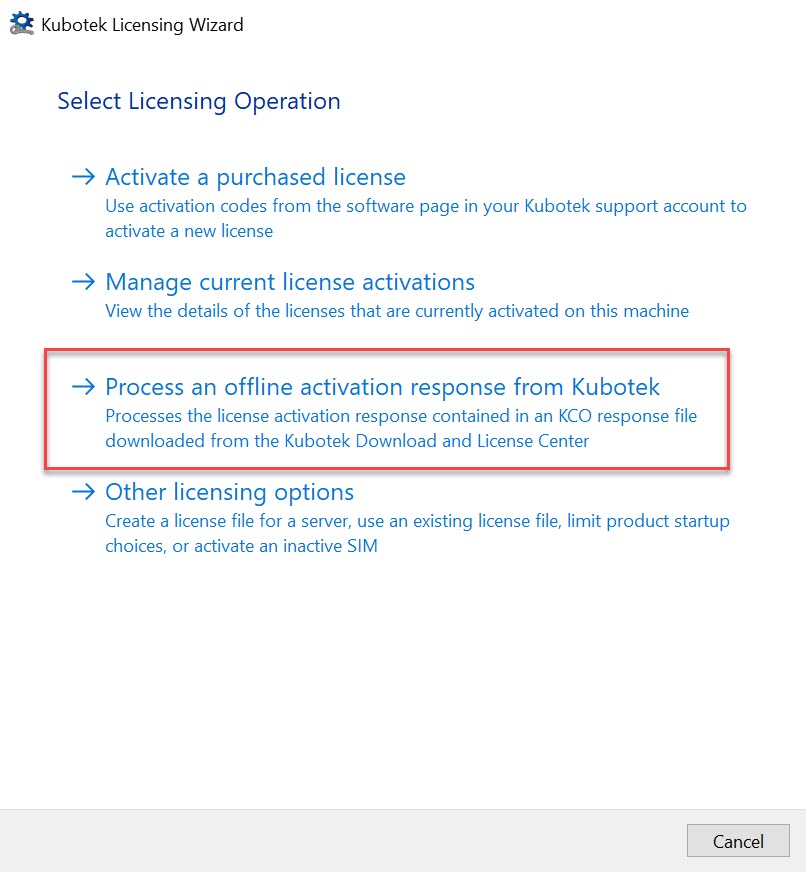
Transfer Response file to offline machine and choose Process an Offline Activation Response in License Wizard:
-
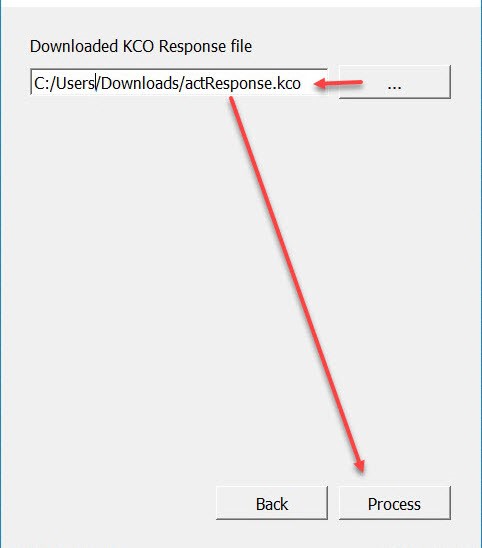
Load the KCO Response file and click Process. The Offline Activation is now complete.