Moving an Activation to a New PC
Part 1: Return the license activation (Activation Check-in)
Step A: Starting on the workstation which the software is activated on, run the Kubotek Licensing Wizard. This program can be found in the Windows apps list by searching on "License Wizard" or choose Start, scroll down to KeyCreator group and choose License Wizard.
Step B: Click on "Manage current license activations":
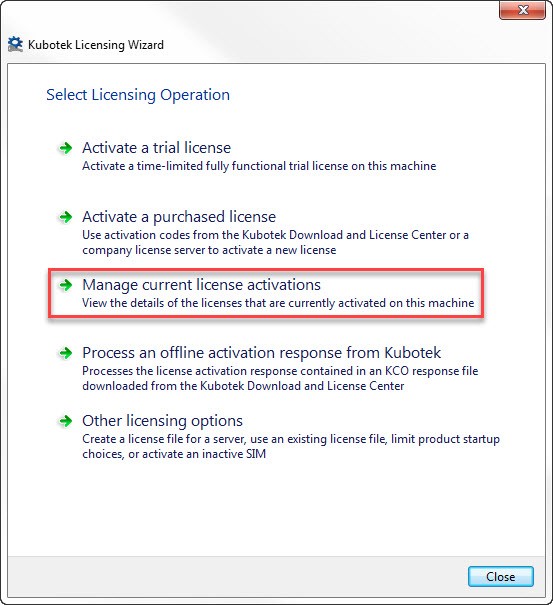
Step C: Select the license activation you want to move.
- If you only have one license activated on this workstation, it will be displayed. If you have more than one, select the license activation from the dropdown (all activation numbers start with F).
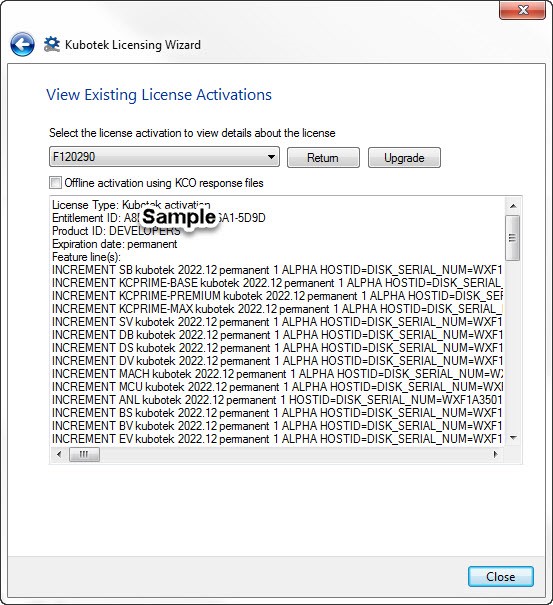
Step D: Highlight the 20-digit "Entitlement ID".
You can copy it from here, but it is also available in your support site account (see Step 2 instructions below).
Step E: Check-in (Return) the license activation back to the support site.
- Click the Return button.
- When the license has been returned to the Kubotek Kosmos license server (the support site), it will be removed from the license activations list.
- If you get an error message “Cannot read or write to license storage”, this is a Windows permissions issue. You will need to re-start the License Wizard app with the Windows “Run as administrator” option turned on. This setting can be accessed in the Compatibility tab in the app desktop shortcut properties.
- Click Close to exit.
Part 2: Get the Activation Code
If you have already copied the activation code in Part 1 Step D, you can skip to Part 3.
Step A: On the workstation the license is being move to, log into the Kubotek Kosmos Support Site. Select the My Software option in the menu along the top. This will display all of the Kubotek products assigned to you. If your product is not on the list, have your account admin assign the product to you from the Account Admin Licenses option. The activation code listed here will match the entitlement ID from Part 1 Step D.
Step B: Select the More Details button to the right of your product to reach the license details and product downloads page. The activation code status should show as "Available for activation or login" because you just checked it in as part of Part 1. Copy the 20-digit code to the Windows clipboard.
Part 3: Start KeyCreator on the new workstation
Step A: Use your perferred method in Windows to start your installed KeyCreator program — When you try to start a KeyCreator program on a workstation without a license activation, the License Authentication dialog appears. Select the License Wizard option in the lower right. This will start the Kubotek Licensing Wizard program.
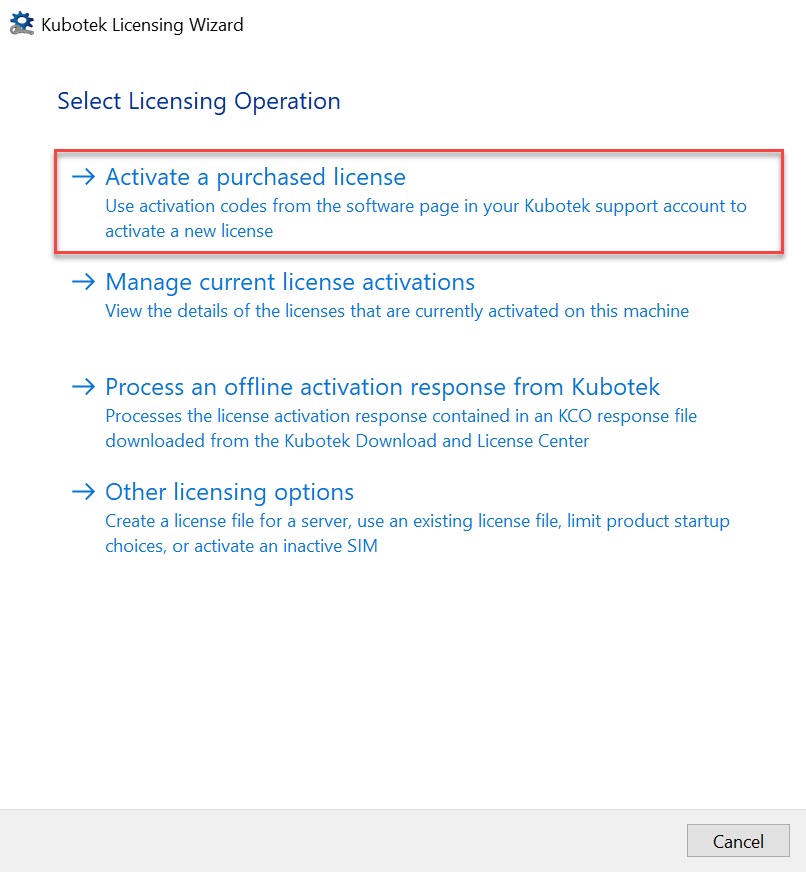
Step B: Click on "Activate a purchsed license"
Step C: Paste your 20-digit Activation Code into the available field — (i,e 1111-1111-1111-1111-1111). The default option "Connect to the Kubotek activation server directly over the internet" should remain selected.
Step D: Click "Activate" at the bottom of the Kubotek Licensing Wizard dialog.
License check-out complete — When the license has been activated onto this workstation you will see a "License Finished" message and can close the Wizard.