Moving an Activation to a New PC
Moving a standalone license activation from one workstation to another is a simple process. These steps assume that the Kubotek program is installed on both workstations and both have an internet connection.
Part 1: Return the activation license
-
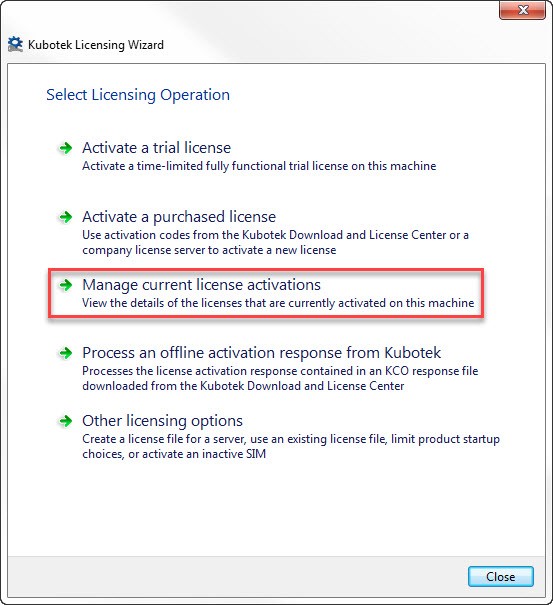
Run the Kubotek License Manager (Wizard) — this program can be found in the Windows apps list by searching on "License Manager" or choose Start, scroll down to Kubotek product group and choose License Manager.
-
Click on "Manage current license activations":
-
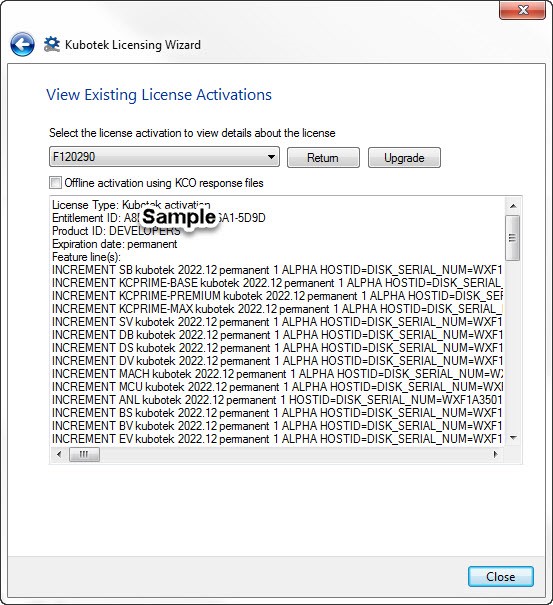
Select the license to return:
- If you only have one license it will be displayed. If you have more than one, select the license you wish to return, (highlighted).
- Click "Return".
- When the license has been returned to the Kubotek Kosmos license server, it will be removed from the list.
- Click close to exit or Back to the main menu to continue.
Part 2: Get the Activation Code
-
Log into the Kubotek Kosmos Support Site. Select the My Software option in the menu along the top. This will display all of the Kubotek products assigned to you. If your product is not on the list, have your account admin assign the product to you from the Account Admin Licenses option.
-
Select the More Details button to the right of your product to reach the license details and product downloads page. A note under the Activation Code will make clear if the license is available or has already been checked-out to a workstation. If it is available, copy the 20-digit code to the Windows clipboard.
Part 3: Start the program on the new workstation
-
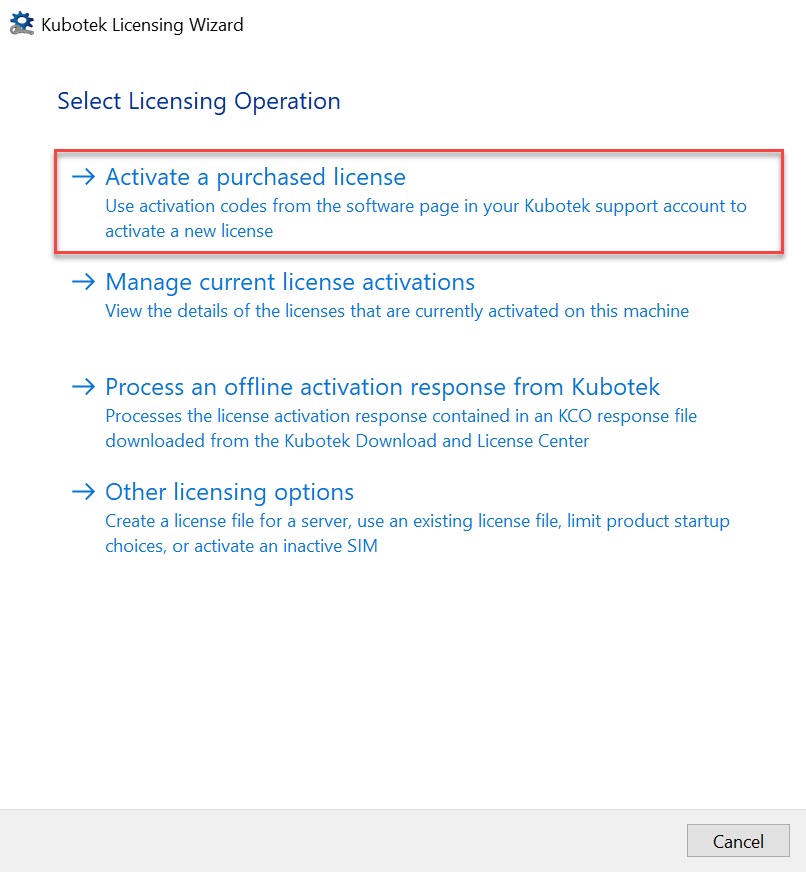
Use your perferred method in Windows to start your installed Kubotek Kosmos program — When you try to start a Kubotek program on a workstation without a license activation, the License Authentication dialog appears. Select the Licensing Manager option in the lower right. This will start the Kubotek License Manager program.
-
Click on "Activate a purchsed license"
-
Paste your 20-digit Activation Code into the available field. The default option "Connect to the Kubotek activation server directly over the internet" should remain selected.
4. Click "Activate" at the bottom of the Kubotek License Manager dialog.
License retrieval complete — When the license has been retrieved you will see a "License Finished" message and can close the License Manager.