Extend

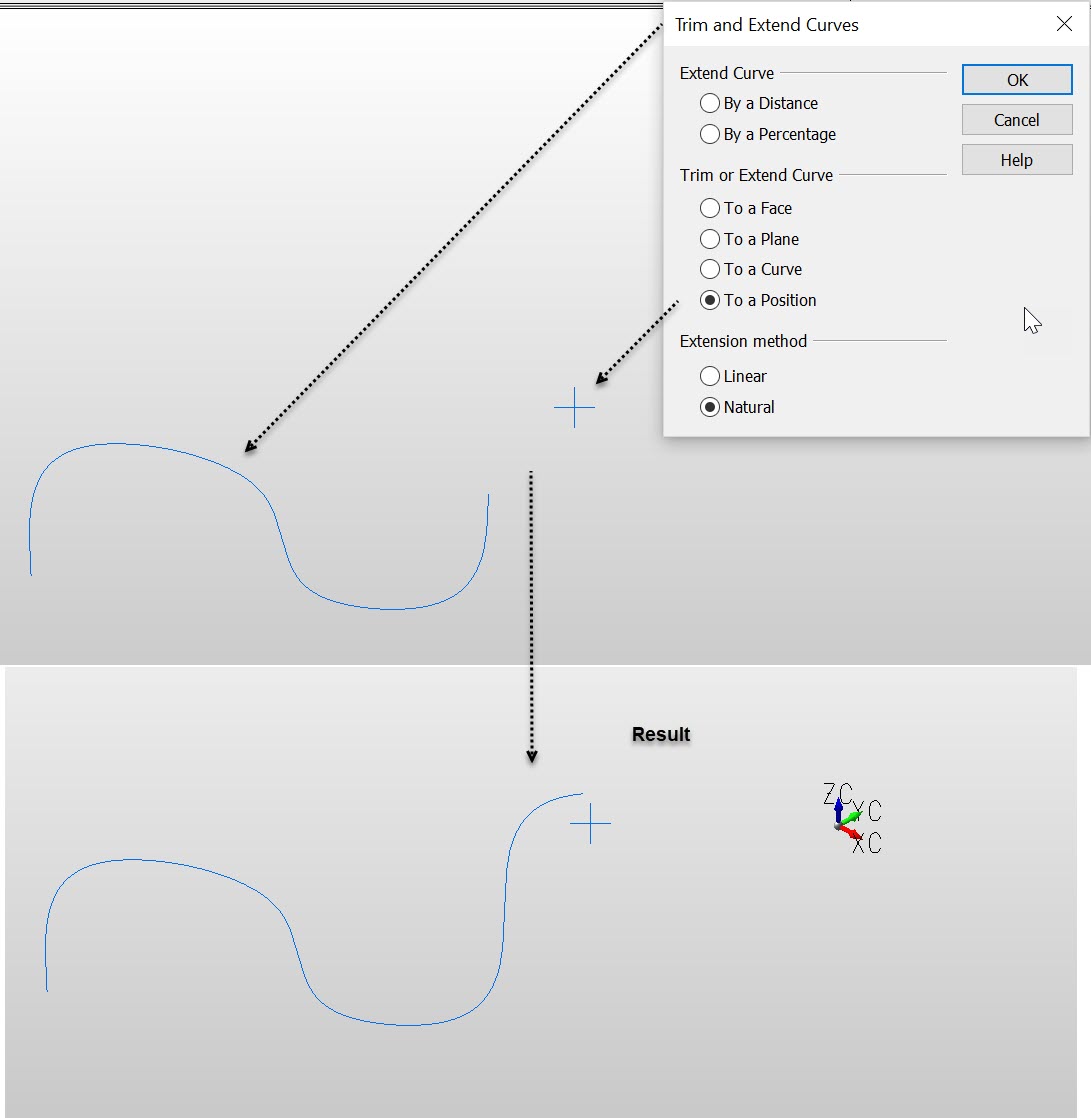
The Extend option can be used to trim or extend splines or any curve entity to a point, curve, plane, surface, or by a scalar distance or percent. The parameters by which this is done are controlled through a dialog box that appears when the function is selected. Note that it will be important to follow prompts in the Conversation Bar carefully.
NOTE: If the spline and curve do not intersect when trimming or extending a spline to another curve, the minimum distance routine is used to calculate the nearest point on the target curve to trim or extend to.
Dialog Options:
The following settings are available from the dialog that appears when the function is selected from the Modify Menu.
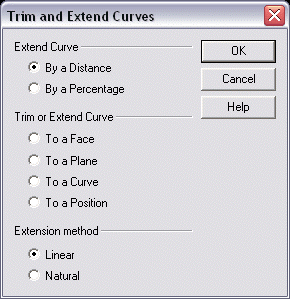
Extend Curve
Specify whether to extend a curve by a specified distance or by a percentage.
Trim or Extend Curve
Specify whether to trim/extend a curve to a face, plane, curve, or position.
Extension Method
Select an extension method from the available options: Linear or Natural. Linear extensions follow the last tangent vector off the spline in a straight line. Natural extensions use the cubic rate of curvature along the spline to produce a continuous curving extension.
Using the Function
-
Select Extend from the Modify>Spline submenu.
-
The Trim and Extend Curves dialog appears, from which you can specify the trim/extend parameters. Configure the dialog settings where necessary, and select OK to accept any changes.
-
Follow the prompts that appear in the Conversation Bar to complete the editing procedure.
Example Modify Spline Extend: