2ND Uni-Directional Rough with Up Only Z Dialog
This dialog appears when the OK button option is selected in the Uni-Directional Rough with Up Only Z dialog.
Since the below dialog is the same as Follow Surface 2nd dialog the respective Help Button will bring up this topic showing the below dialog.
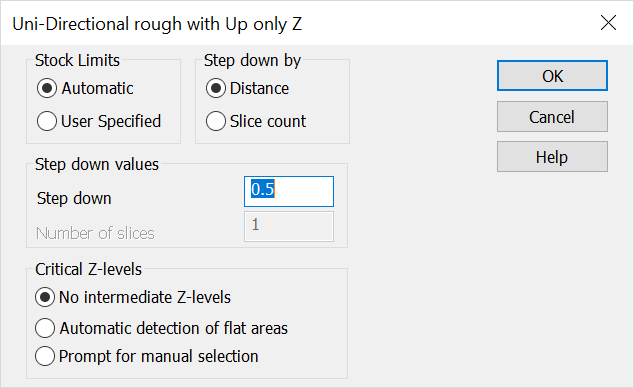
Stock Limits
-
Automatic – When checked, the software will determine heights for machining by verifying that all of the geometry is machined.
-
User Specified – When checked, you will be prompted to indicate a zone in the Z-Axes to control the machining area.
Step Down By
-
Distance – When checked, the step down will be created using a delta value for Z steps.
-
Slice Count – When checked, the software will divide the distance to be machined in Z by the number of slices.
Step Down Values
-
Step Down – Specify the Delta value used to determine Z steps.
-
Number of Slices – This is the number divided into the distance to machine to determine the Z steps.
Critical Z Levels
-
No Intermediate Z-Levels – When checked, the software will not factor flats into the tool path.
-
Automatic Detection of Flat Areas – When checked, the software will look for flat areas and produce Z levels at the part wall stock value above the plane.
-
Prompt for Manual Selection – When checked, you will be prompted for specific Z levels requiring tool paths. The part wall stock value will offset the levels that are selected.