Manage Snapshots

Use the Manager Snapshot function to manage your Snapshot through a dialog that appears when the function is selected. Through this dialog, you are able to manage the Snapshot list, as well as load, add, and modify selected Snapshots.
Using the Function:
-
Select Manage Snapshot from the View>Orientation>Snapshot Ribbon area.
-
The Manage Snapshot dialog appears (see below). Configure the dialog options and click OK.
Dialog Options:
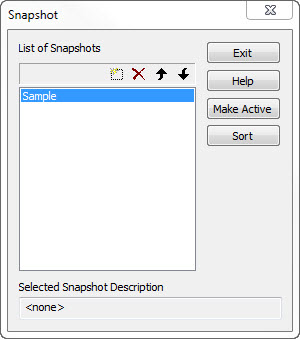
List of Pictures
Any pictures loaded in the Picture Manager are displayed here. To move a picture to the top of the list, select the name and click on the MOVE TO TOP button option. To move a picture up one space, select it and click on the MOVE UP button option. Pictures can also be moved down in the list using the MOVE DOWN (one space) and MOVE TO THE BOTTOM options.
-
Selected Picture Description – The description for the selected picture in the list is displayed here.
MAKE ACTIVE
Select this to load the picture currently selected in the List.
NEW
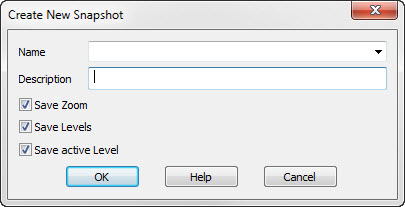
Select this button option to add a new picture to the list. The Picture Manager Insert Data dialog appears, through which you can specify a name and description for the new picture.
DELETE
Select this button option to remove a selected picture from the list.