Interface Terminology
General Interface
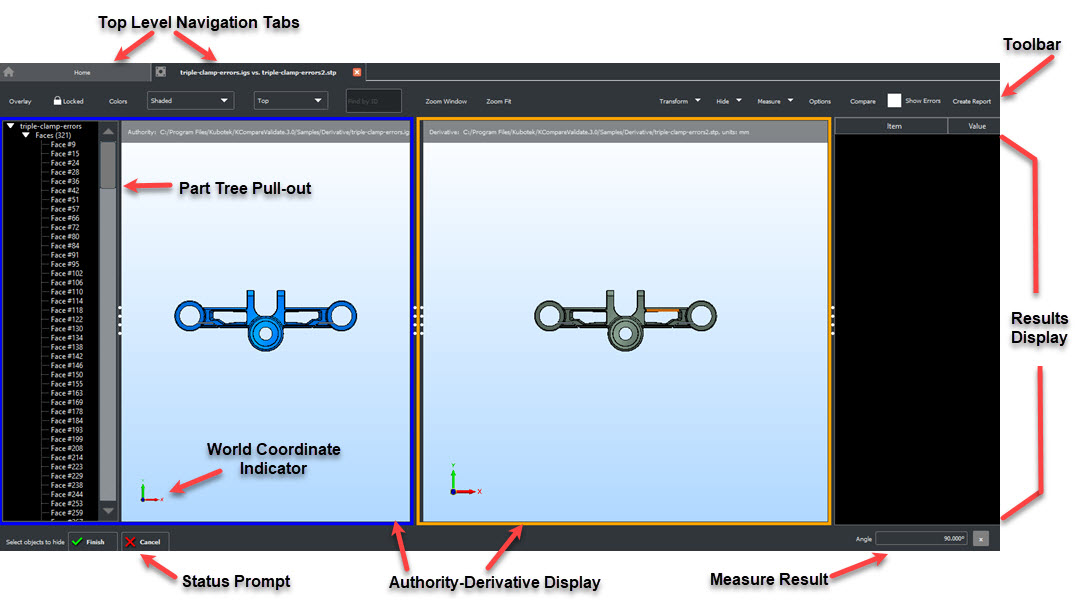
Navigation Tab
Toolbar
The Toolbar contains the functions and drop down menu items for Overlay, Locked/Unlocked, Color Options, Render, View, Find by ID, Zoom Window/Fit, Transform, Hide/Un-Hide, Measure, Compare Options, Compare, Show Errors and Create Report. The last used function will be listed in the Tool Bar, (reset when KCompare Validate is closed).
Part Tree
The Part Tree lists the file contents in order of top level objects like solids, features belonging to the top level object and Mass ID number for the object. Right click context menus allow actions on objects such as Hide.
Display
Paired file objects are viewed in the Display Area. Toolbar Colors can be used to change the display background colors. Display related functions such as Zoom, View orientation and Render are available in the Display right click context menu as well as the toolbar. Other functions such as Zoom, Hide, View and Render are available when left click highlighting objects in Display and using the right click context menu.
Results Display
Once a Compare is run the Results Display populates with a Compare Results Tree. Items such as Options set, Derivative Adjustment, Authority + Derivative No Match/Match, and Partially Matched along with any corresponding Values will Appear. The Results Display can be used to highlight Match/No Match items in Display, provide comment through the use of Disposition and manage partial match items, (can be changed to Treat as Different). The results listed in this area form the basis of the Created Report for the Compare session.
Status Prompt
Functions requiring user input, (selecting objects or selecting base point for example) will show prompts in this area. Once the function is complete the prompts clear.