Report Template Edit
Validate allows users to create report files in .pdf and .rpt file formats. These report files are created using a standard template. Validate provides an option to customize the user name and certification format using a user created template file .
Custom Template File Overview
The template file is called “Template.csv” and is created using a text editing application such as Notepad.exe . Validate searches for availability of the “Template.csv” inside the install directory, (default C:\Program Files\Kubotek\KCompareValidate.2.1\). If Validate finds this csv, it will use the contents of the “Template.csv” file to create the report file.
The “Template.csv” contains two mandatory fields which can be customized in .rpt and .pdf report files. The two fields are as follows.
-
$username,
-
$certification,
Example Template.csv content:
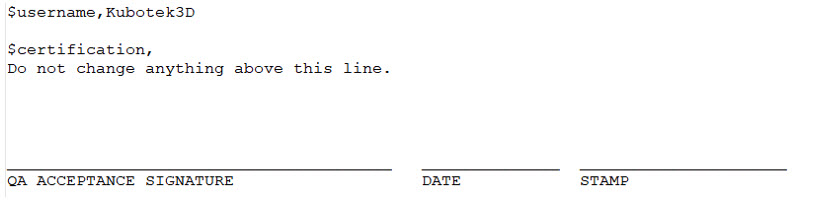
$username, Kubotek3D result in Report file:
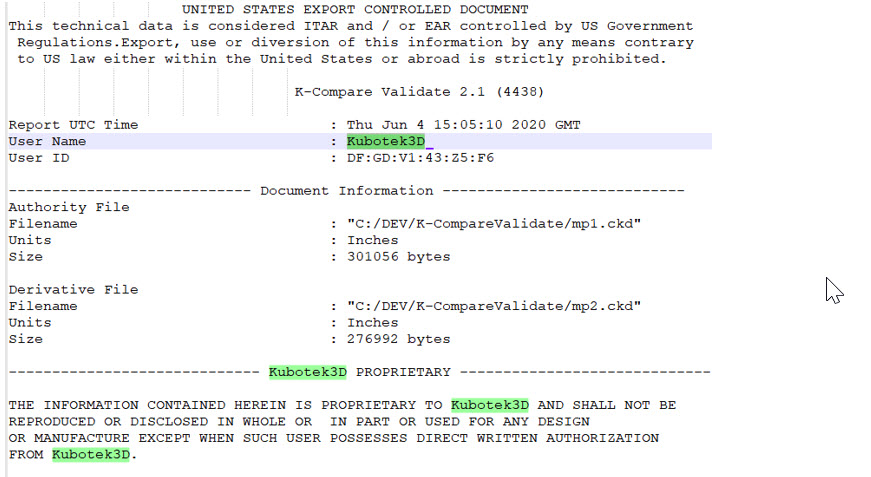
Result $certification in Report file:

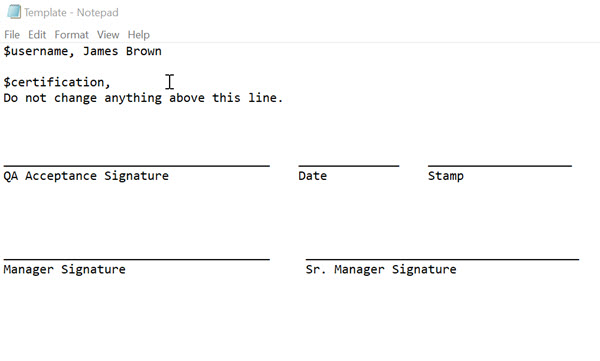
Steps in creating custom Template.csv for Report
 |
Format Notes |
|
Leave a space after $username, and then enter desired username entry. After $certification, entry start a new line, (hit keyboard Enter) and format as desired. Avoid using any Tab keyboard entries for formating, in above example space bar entries are used to align text under signature lines, (Ctrl + a series of_ dashes were used to create lines). |
2. Save the file as Template.csv in root of install directory:

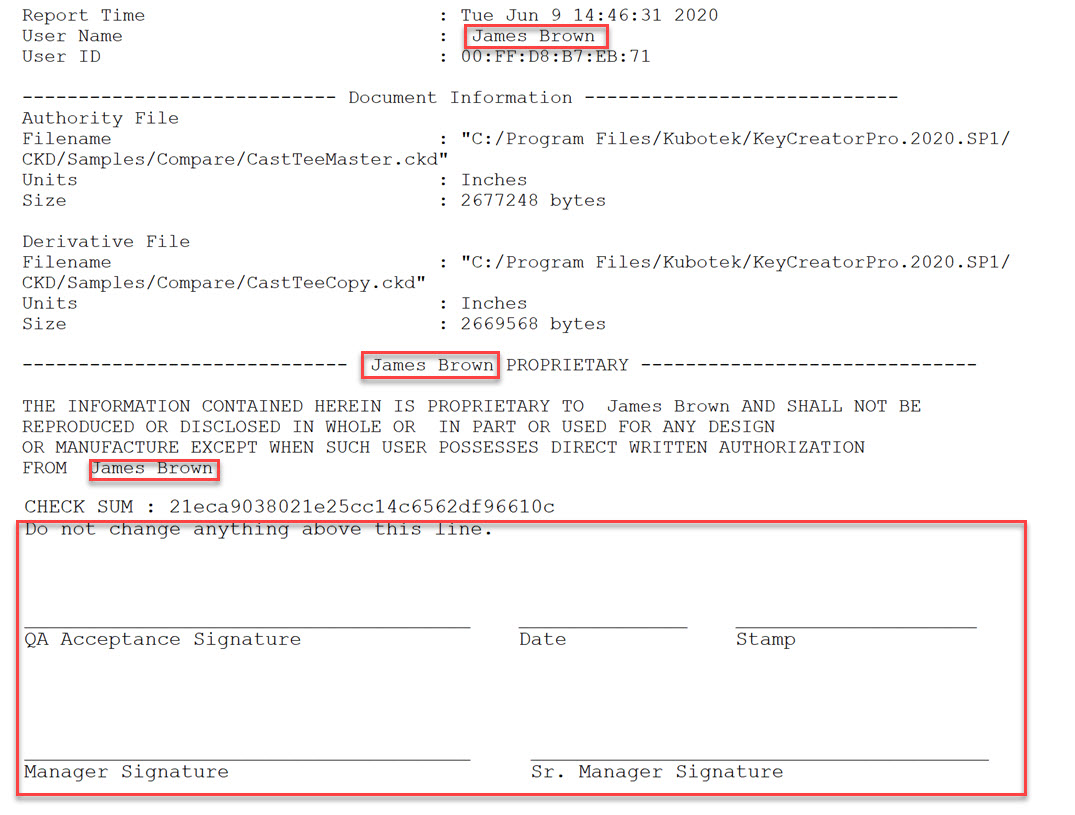
3.Test by running a Compare and Write Report :
Revert to Standard Report Format
Delete the custom Template.csv from the root install directory of Validate (default C:\Program Files\Kubotek\Validate.2.1\).