Customize Application
These settings are application specific effecting any files opened. Session specific Options are also available.
Unit Settings for CATIA V5 and Parasolid files
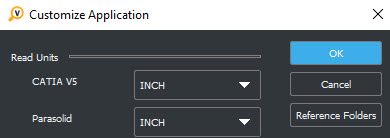
Note: Parasolid and CATIA V5 files are unitless. Validate requires a unit of measure which is set in Customize Application.
Assembly Compare Reference Folders

NOTE: Assembly Compare shows the folder path as well as the file name when loading the assembly. Using the Prompt when loading to browse for reference location or the Saved method could result in different reference paths than specified in Assembly file, causing a status of 'Different'.
Folder and List Compare Options
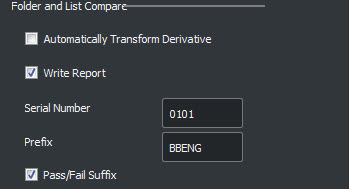
Automatically Transform Derivative— Aligns Derivative to same orientation as Authority.
Write Report— Auto-create report which appears in Derivative folder by default.
Serial Number and Prefix— Serial Number will appear in file and Prefix will append to file name.
Pass/Fail Sufix— Will append to file name.
Report Options:
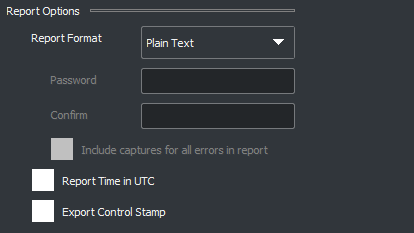
Report Format— Plain text in .rpt format .pdf will include current display view of Derivative-Authority and error captures if selected.
Password with Confirm— PDF enabled.
Include Captures, (images) for all errors in report— PDF enabled.
Report Time in UTC— Coordinated Universal Time Standard, unchecked uses local time-date.
Export Control Stamp— Appears at top of report.
Colors:
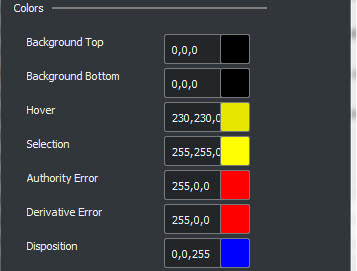
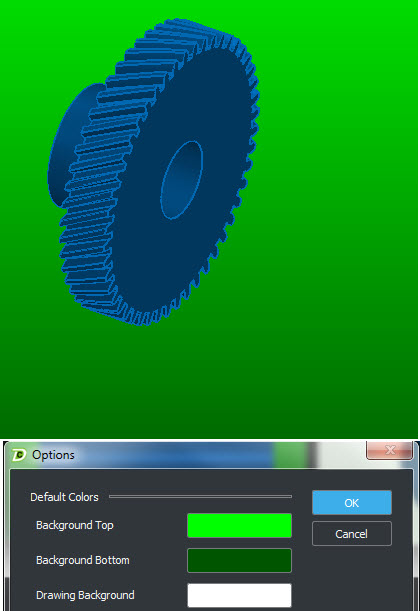
Background Top-Bottom— Can effect visibility when part color matches these settings.
Gradient backgrounds, (transitioning from top to bottom by color variation) help visualization and catch model color=display color issues:
Hover-Selection — Mouse pass over objects and object selection highlight color.
Authority-Derivative Error — As viewed in Compare Results Window.
Disposition — User defined and appears in Compare Results Window.