Create Options
Create Overview
Basic Edit Tools:
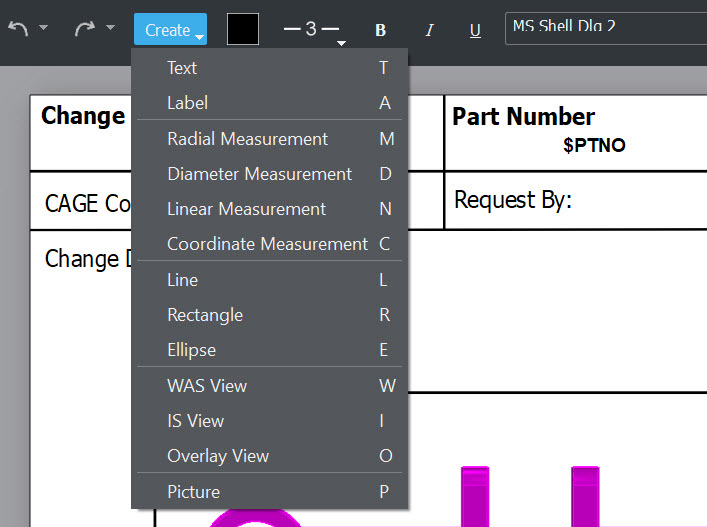
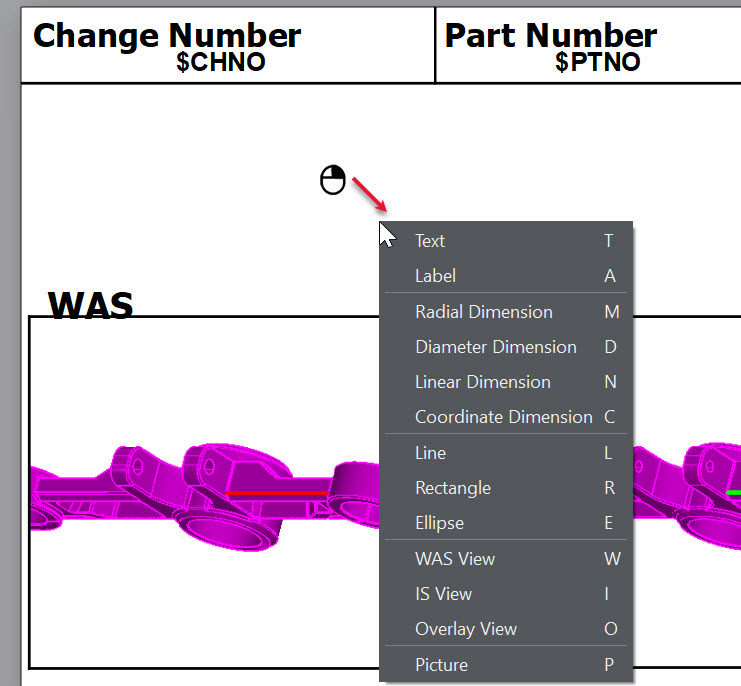
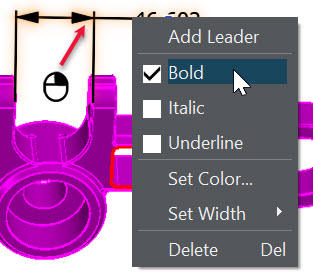
Create Context menu:
Adding Views in feature pages will show a zoomed in highlight of area of interest for each feature.
A picture image can be added to page 1 and 2, scale factors will apply if image is to large for page.
Background images can be added as a backdrop to pages. Display toggle background using File>Set Background.
Add Measurement details to pages
Position points for measurement, (red dots) will only be selectable in a 3D view.
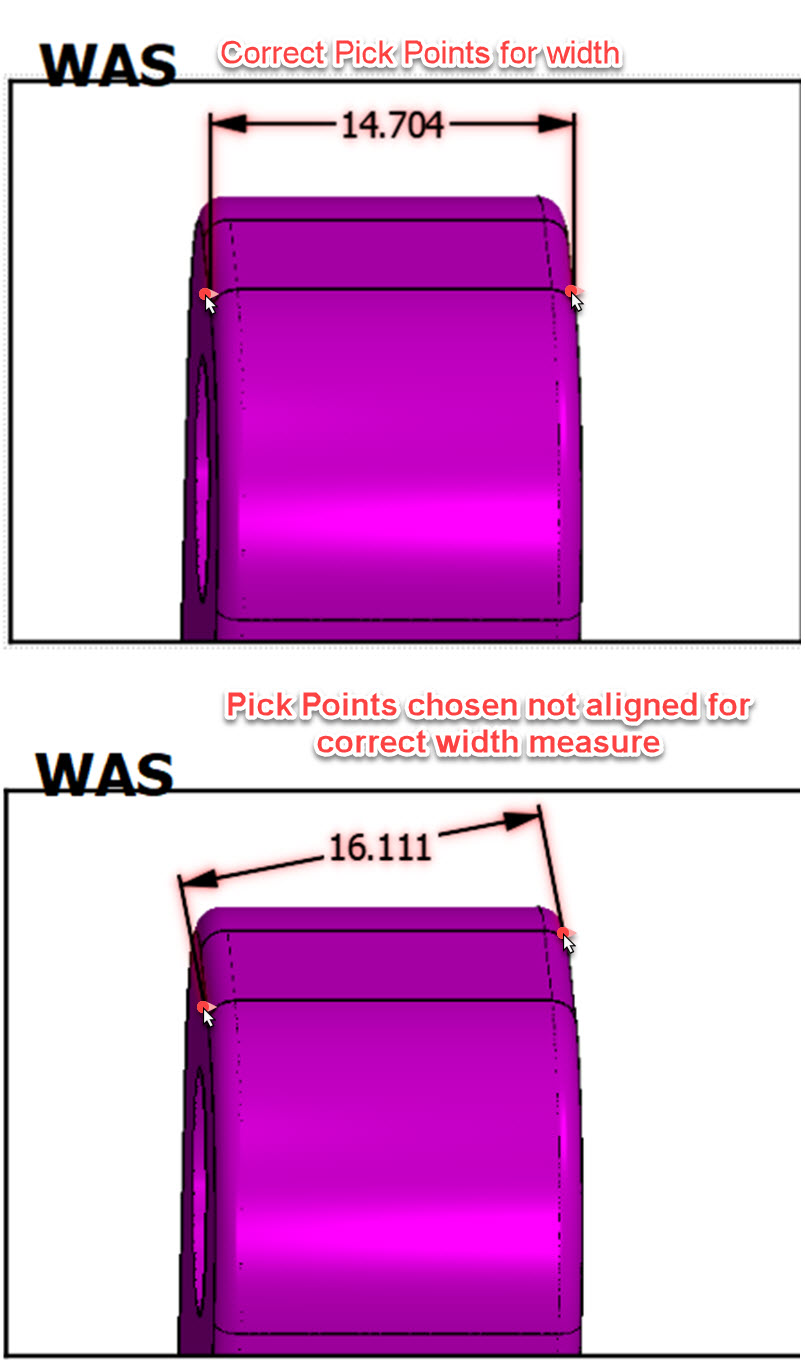
Select 1 circular entity for radial-diameter, 1 location for coordinate measure or 2 locations for Linear.
Right click on measurement opens context menu for actions like edit or delete.
Choose keyboard ESC to exit in-process measure function.
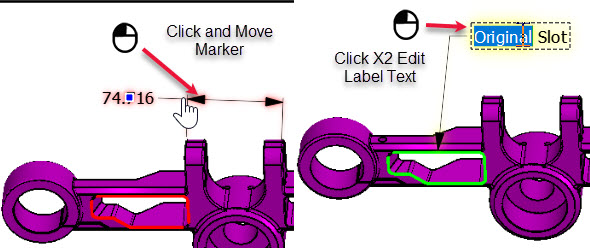
Different locations of hover select (either text or measure entities) used to edit measurement:
Locator View Creation
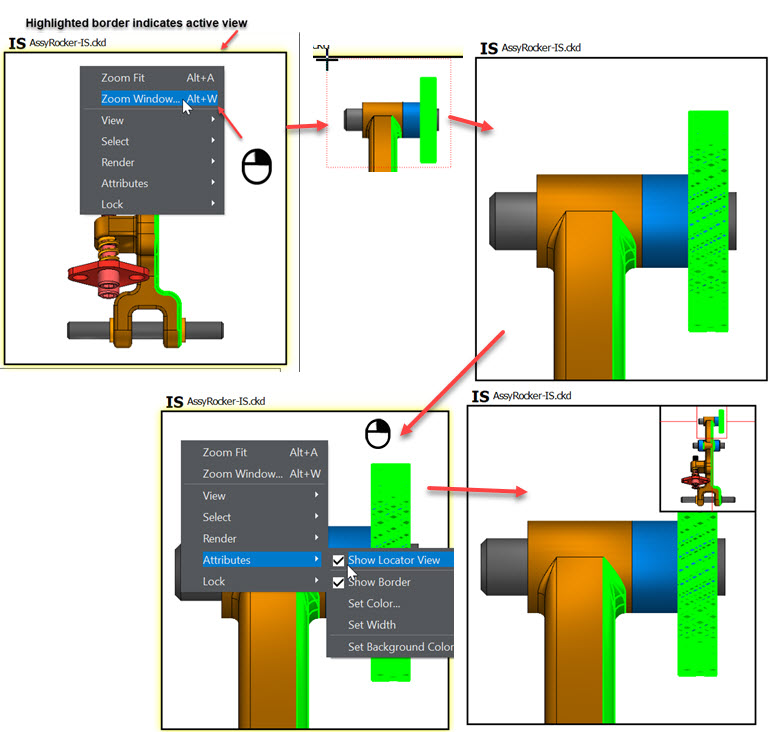
A map style locator view can be created from a primary view by highlighting a view, (click on a view to make it active) and in the right click context menu choose Attributes>Show Locator View: